Shut your PC down every night, on time

Shutdown Scheduler turns your PC off at a set time, every night or just once, so the BIOS timer can bring it back in the morning. The window always shows what is really set.

Version 4.2.0 · Windows · Free and open source (MIT) · No administrator rights needed

The exe isn't code-signed, so Windows may warn you the first time. Choose More info, then Run anyway.

Shutdown Scheduler
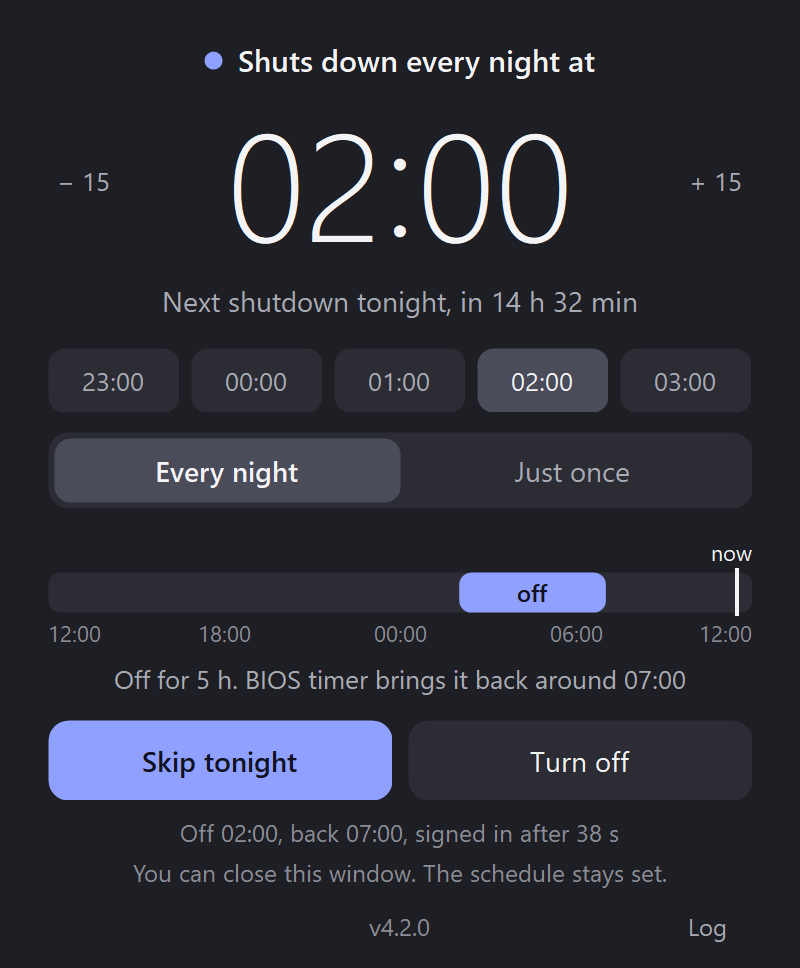
The Shutdown Scheduler window with a nightly shutdown on. It reads: Shuts down every night at 02:00. Next shutdown tonight. Off for 5 h, with the BIOS timer bringing the PC back around 07:00. Buttons: Skip tonight and Turn off.
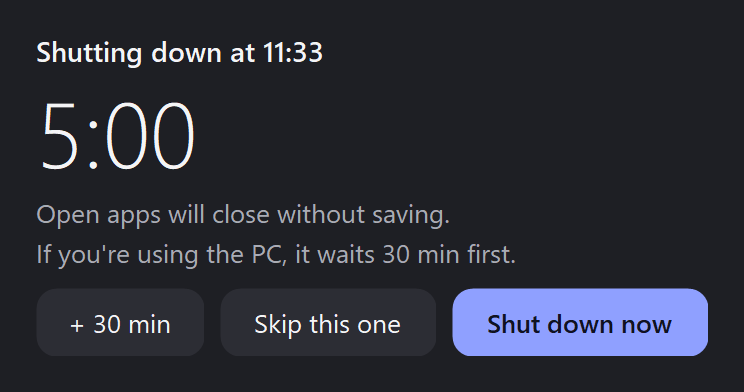
The countdown window that appears five minutes before a shutdown. It shows 5:00, a warning that open apps will close without saving, and three buttons: plus 30 min, Skip this one and Shut down now.

One time on screen, and it's the real one

Set it once. Shutdown Scheduler stores the schedule in Windows itself, warns you before it acts, and tells you how last night went.

Pick a time, press one button

Type the time (0230, or 2 then Enter for 02:00), scroll over it, use the arrow keys, click − 15 or + 15, or pick a preset. Choose Every night or Just once, then click the wide button at the bottom.

While a schedule is on, changes save straight away. You can close the window and the schedule stays set, including across restarts.

Shutdown Scheduler
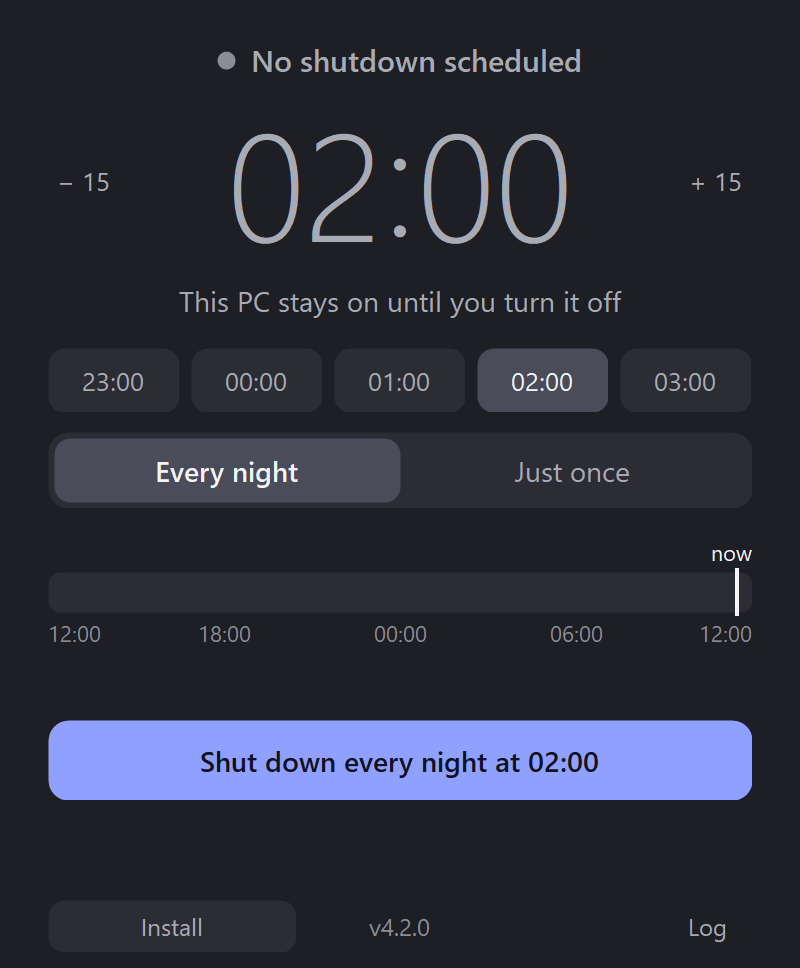
The Shutdown Scheduler window the first time it opens. It reads: No shutdown scheduled. This PC stays on until you turn it off. The time is 02:00, with preset buttons from 23:00 to 03:00, an Every night or Just once choice, and a wide button reading Shut down every night at 02:00.

A warning first, and it waits if you're working

Five minutes before the shutdown, a countdown appears in the bottom right corner without taking focus from what you are doing. It offers + 30 min, Skip this one and Shut down now.

When it ends, if you used the keyboard or mouse in the last 5 minutes, the shutdown waits 30 minutes and the countdown comes back, up to 3 times. After that, or if the PC isn't being used, the PC shuts down and open apps close without saving.

The countdown window, showing 5:00 until the shutdown, a note that open apps will close without saving, and the buttons plus 30 min, Skip this one and Shut down now.

Skip a night, or stop it

Skip tonight leaves every other night alone, and Don't skip it undoes it. Turn off stops the schedule altogether.

The line at the top always says what will happen next. It turns amber when a night is skipped or postponed, so you can tell at a glance that the PC won't go off when you expect.

Shutdown Scheduler
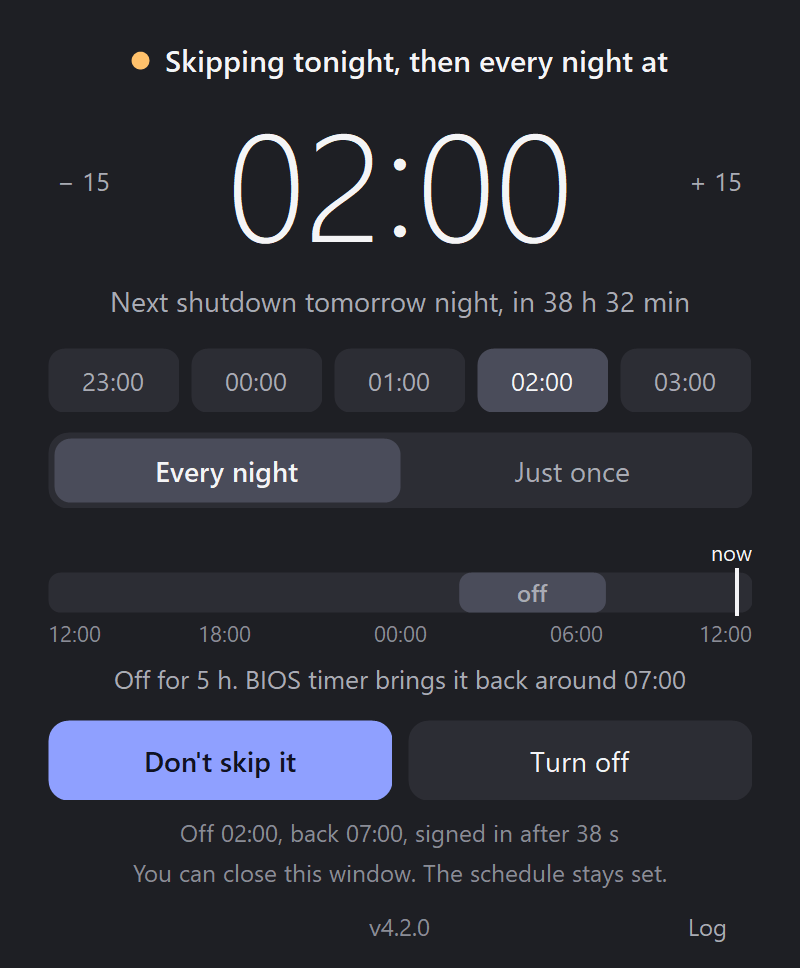
The Shutdown Scheduler window with tonight skipped. The status line is amber and reads: Skipping tonight, then every night at 02:00. The next shutdown is tomorrow night. The main button now reads Don't skip it.

The details that make it work unattended

A shutdown at 02:00 is only useful if the PC comes back properly at 07:00.

  • Signs back in

    It shuts down with shutdown /sg, so Windows signs back in and locks after the BIOS timer starts the PC, the same as shutting down from the Start menu. Plain /s leaves the PC at the sign-in screen with none of your startup apps running.

  • Last night's result

    A line above the version shows when the PC went off, came back and signed in. It warns you if a shutdown didn't happen or Windows didn't sign in by itself.

  • Lives in Task Scheduler

    The schedule is stored as Windows scheduled tasks, so it outlasts the window and survives restarts. A shutdown missed while the PC was off is dropped, so it can't fire when the PC next starts.

  • Installs without administrator rights

    One click copies the exe to a fixed folder for your user only, adds it to the Start menu and to Windows' app list, and points the schedule at it. Moving or deleting the download can't stop the shutdowns.

  • Updates only when you say

    The app asks gitlab.com for the latest release when the window opens, sending only its version number. Nothing is downloaded until you click, and the file is checked against the release's checksum first.

  • A log of what it did

    The Log button opens a record of countdowns, waits and shutdown commands, so you can see why the PC did or didn't go off.

Before you start

It does one job, and these are its edges.

  • Only the BIOS timer can start the PC. This app doesn't change it, so set the wake time in your BIOS setup. The window's “back around 07:00” is a guess from the times the PC has been starting at.
  • You need to be signed in. The tasks run while you are signed in, locked or not. If nobody is signed in at the time, that shutdown doesn't happen and the PC stays on.
  • The wait only notices the keyboard and mouse. Watching a video doesn't count as using the PC.
  • Install it, or leave the exe where it is. If you move the exe without installing it, the shutdown silently won't happen until you open it from its new place.
  • The exe isn't code-signed. Updates are checked against a checksum, which catches a damaged download, but you are trusting this project.

Get it

It runs on the .NET Framework that ships with Windows, so there is nothing else to install.

  1. DownloadOne file, ShutdownScheduler.exe.
  2. Run itIf Windows warns you, choose More info, then Run anyway.
  3. Click InstallIt's at the bottom of the window. Then pick a time and turn it on.

To remove it, open Windows Settings > Apps > Installed apps, find Shutdown Scheduler and choose Uninstall. That turns off the schedule and removes the app, its settings and its log.